Manage delivery locations
Add and configure physical and virtual locations where your RTO delivers training.
Purpose
Set up delivery locations (physical classrooms, online platforms, or other training venues) that link to delivery offerings and are reported in AVETMISS NAT00020 location files.
When to use
During initial RTO setup and whenever your RTO opens a new facility, closes a location, or changes location details.
Steps
- 1Click Delivery Locations under Classroom Management in the left sidebar.
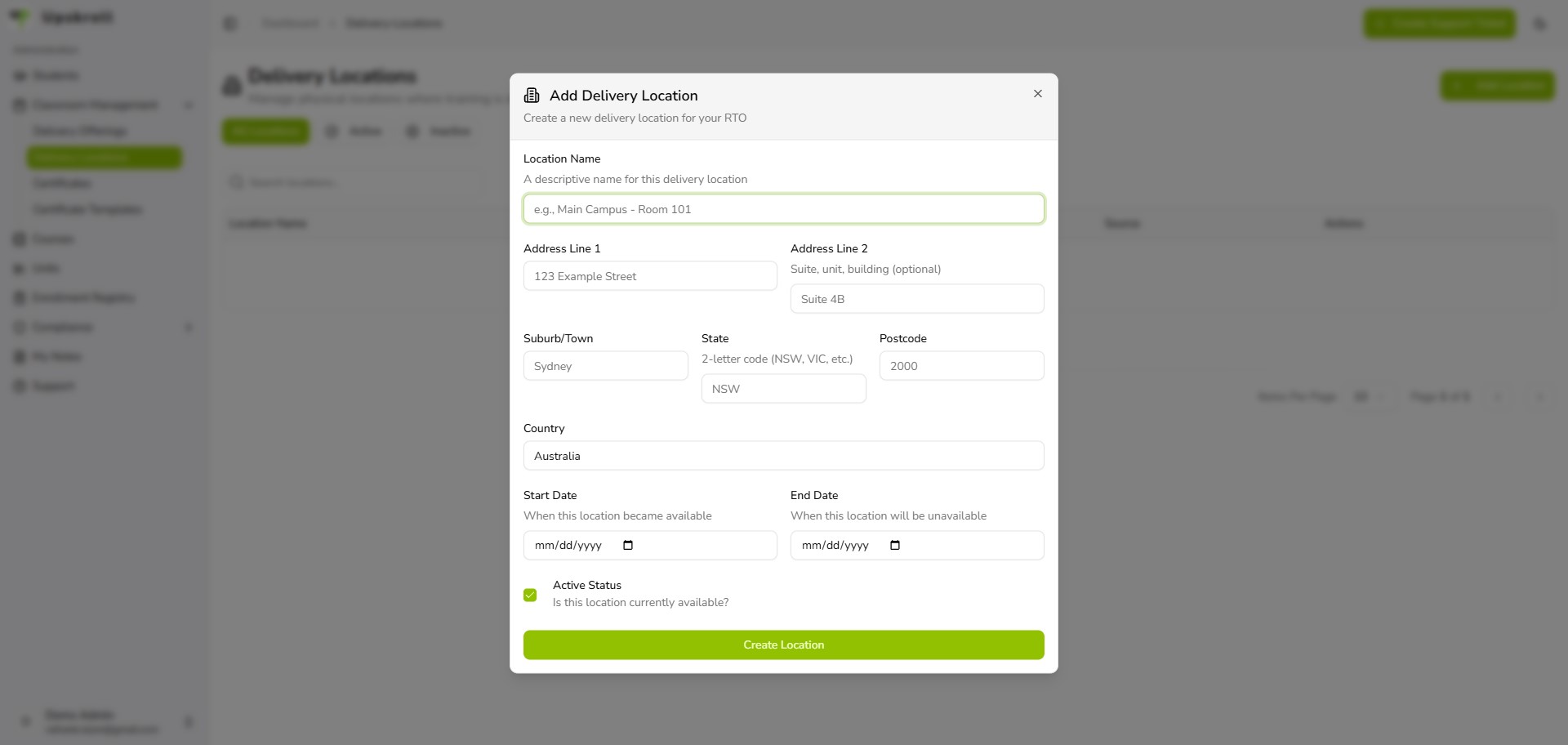
- 2Click the Add Location button to open the location creation form.
- 3Enter the Location Name (e.g. 'Main Campus - Building A', 'Online Platform', max 100 characters).
- 4Enter the Address (Street Address, e.g. '123 Example Street', max 50 characters).
- 5Optional: Enter Address Line 2 if needed (Suite, Unit, Building, max 50 characters).
- 6Enter the Suburb/Town (max 50 characters).
- 7Select the State from the dropdown: NSW, VIC, QLD, SA, WA, TAS, NT, or ACT.
- 8Enter the Postcode (4 digits, numeric only, e.g. 2000).
- 9Country defaults to Australia. Confirm or update if needed.
- 10Optional: Set a Start Date (when location becomes available, YYYY-MM-DD format).
- 11Optional: Set an End Date (when location closes or becomes unavailable, YYYY-MM-DD format).
- 12Optional: Uncheck Is Active if the location is not currently available for new offerings.
- 13Click Save. The location is created and appears in the Delivery Locations list.
What happens next
- The delivery location is created and visible in the Delivery Locations list.
- The location can now be assigned to Delivery Offerings via the delivery location dropdown in the offering form.
- When you generate an AVETMISS export, the location's full address is included in the NAT00020 (Delivery Locations) file.
- The location is available for filtering and reporting.
Tips
- Ensure the address is accurate and complete. AVETMISS NAT00020 submission requires full, valid addresses. Incorrect or incomplete addresses cause validation warnings at export time.
- If your RTO operates online only, create a location called 'Online' or 'Virtual' with your RTO's registered address (AVETMISS requires a physical address for all locations).
- Use Start Date and End Date for temporary closures or seasonal facilities — set an End Date when a location is no longer in use, then set Is Active to inactive.
- Active vs. Inactive status filters the location list. Mark locations as Inactive when they are no longer used so the active list stays clean.
- Each location must have a unique name within your RTO. Avoid generic names like 'Classroom' without a building or campus identifier.
- After adding a location, use it in a Delivery Offering within the same week to verify the address is set up correctly before running compliance exports.