Create a course
Add a course or qualification to Upskroll using TGA import (recommended) or manual entry.
Purpose
Create a course record in Upskroll — via TGA import for accredited qualifications (recommended) or manual entry for custom courses — so it is available for delivery offerings and student enrolments.
When to use
When adding a new accredited qualification, skill set, or custom training product your RTO will deliver.
Steps
- 1Click Courses in the left sidebar to open the Course Management page.
- 2Click the Add Course button (top-right). A dropdown menu appears with options.
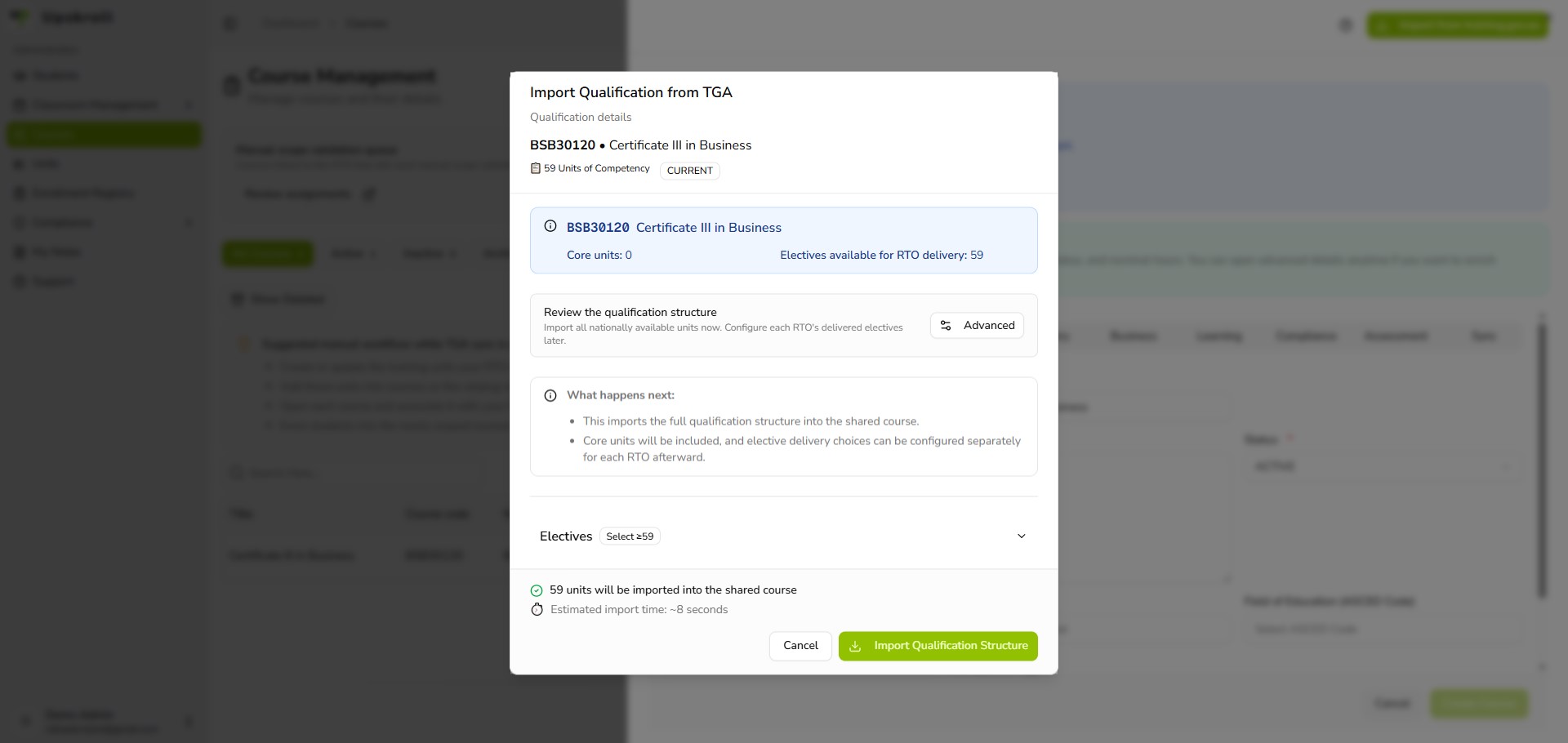
- 3Option A — Import Accredited Course (Recommended): Select this for any nationally accredited qualification or skill set. Enter the qualification code (e.g. BSB50420) or title in the search box.
- 4For qualifications, the system fetches the qualification structure from TGA. Review the preview showing course name, code, nominal hours, and units included. Confirm the import. Upskroll populates all fields automatically.
- 5For units or skill sets, enter the unit code and confirm. The system fetches the unit details and creates a single-unit course record.
- 6Option B — Create Custom Course (Manual): Select this for non-accredited or custom courses. Enter the Course Name, Course Code, Nominal Hours, and other details, then click Save.
- 7Once created, the course appears in the Course Management list with an Active status. The Scope badge shows validation status against your RTO's scope of registration.
- 8If the Scope badge shows Not Validated, use the inline Validate Scope action before publishing offerings based on this course.
What happens next
- The course is created and visible in the Course Management list.
- For TGA-imported courses, name, code, nominal hours, units, and field of education are automatically populated.
- For manually created courses, you provide the core details.
- The course is available for use in Delivery Offerings and enrolments.
- A post-create card appears offering quick actions: Map Units and Validate Scope.
Tips
- Always use TGA Import for accredited qualifications — it eliminates manual entry errors and ensures your course code and name match your scope of registration exactly.
- For qualifications, the preview shows the full unit structure. Review and confirm before importing so the units are seeded correctly.
- Validate scope before publishing delivery offerings — offerings built on out-of-scope courses cannot be published.
- If a qualification has a new version (e.g. BSB50420 replaces BSB50415), create a new course record rather than editing the old one to preserve historical enrolment data.
- For custom courses, agree on naming conventions with your team before adding them so the course list stays organised.