Enrol a student into a course
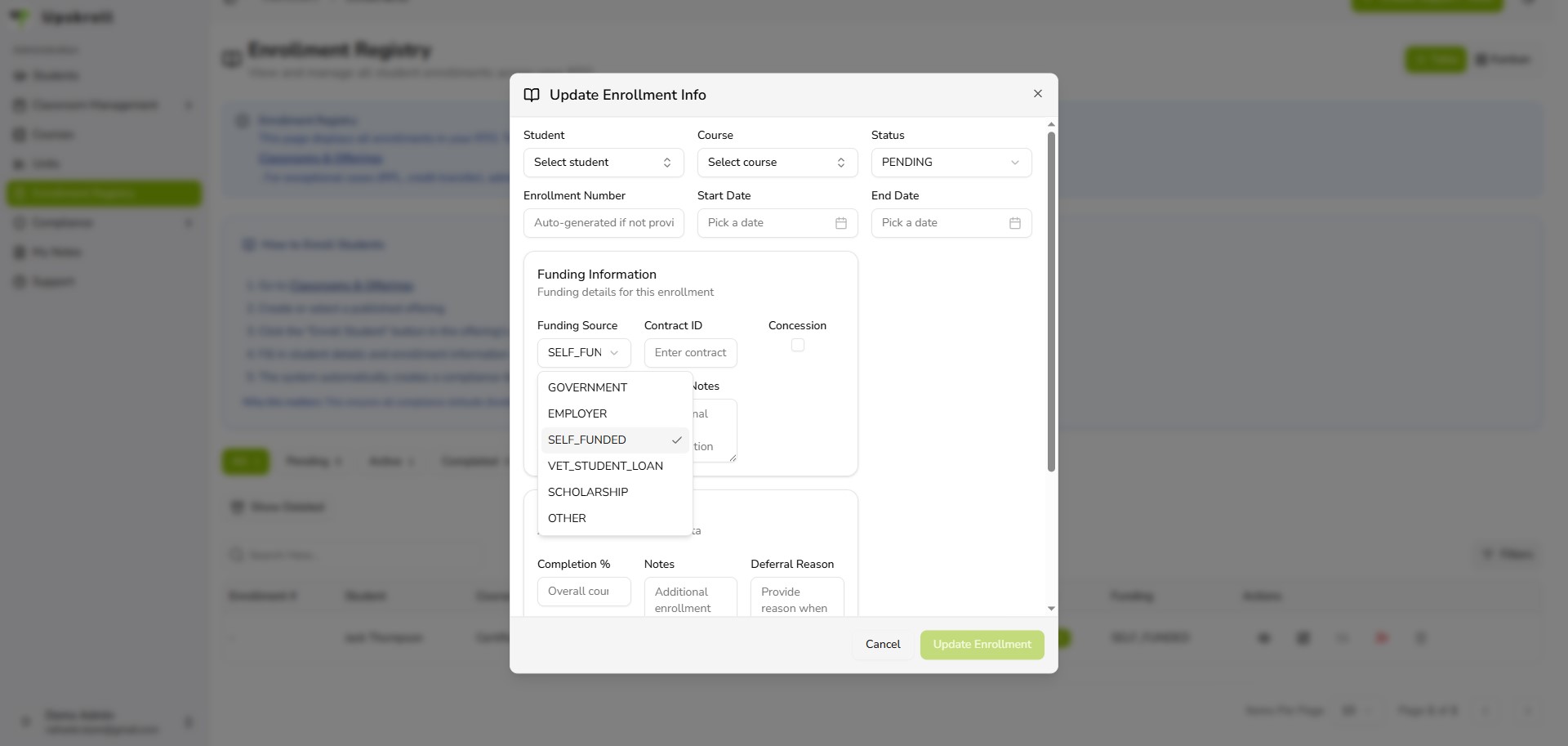
Create an enrolment record linking a student to a course with start and end dates.
Purpose
Create an enrolment record in the Enrollment Registry that links a student to a course, establishing the formal training relationship for compliance reporting and attendance tracking.
When to use
When a learner is confirmed to start a course and you are ready to create their formal enrolment record.
Steps
- 1Click Enrollment Registry in the left sidebar to open the enrolments list.
- 2Click the Create Enrollment button or + icon to open the enrollment form (or go to Delivery Offerings to enrol into a specific class/offering for attendance and competency tracking).
- 3Search for and select the Student using the student combobox.
- 4Search for and select the Course using the course combobox.
- 5Set the Status (usually Pending by default for a new enrolment). You can also change the Enrollment Number if needed.
- 6Set the Start Date and End Date for the enrolment.
- 7Optional: Configure funding details (Funding Source, Contract ID, Concession, Fee Exempt, Funding Notes) if your RTO tracks this.
- 8Optional: Add Notes, Deferral Reason, or Cancellation Reason (the latter fields apply if status is set to Deferred or Cancelled).
- 9Click Save. The enrolment is created and linked to the student's profile and the Enrollment Registry.
What happens next
- An enrolment record is created and visible in the Enrollment Registry.
- The enrolment is linked to the student's profile.
- The enrolment will be included in AVETMISS exports (NAT00100 enrolment file).
- Unit activity is seeded for AVETMISS NAT00120 reporting.
Tips
- Enrolments created in the Enrollment Registry are independent course-student records. For classroom management features (attendance, competency tracking, learner movement between classes), use Delivery Offerings instead.
- If a USI warning appears during enrolment, resolve the USI issue in the student's profile first — unverified USIs block AVETMISS exports.
- Always set an accurate start and end date. Incorrect dates propagate to compliance reporting and cannot be easily corrected later.
- Use the Funding section if your RTO tracks funding source, contracts, or fee arrangements. These fields are included in AVETMISS NAT00100.
- For bulk enrolments into the same course, consider using Delivery Offerings and CSV import — this is faster than creating individual enrolments one at a time.