Create and manage delivery offerings
Set up a class or training intake with dates, delivery mode, trainer, and compliance defaults.
Purpose
Create a Delivery Offering (a scheduled class, workshop, or online intake) that serves as the container for classroom management, attendance tracking, competency assessment, and learner enrollment into a specific cohort.
When to use
When launching a new class, workshop, or intake of a course. Use this before enroling students if you need attendance, competency, or cohort-level management.
Steps
- 1Click Delivery Offerings under Classroom Management in the left sidebar.
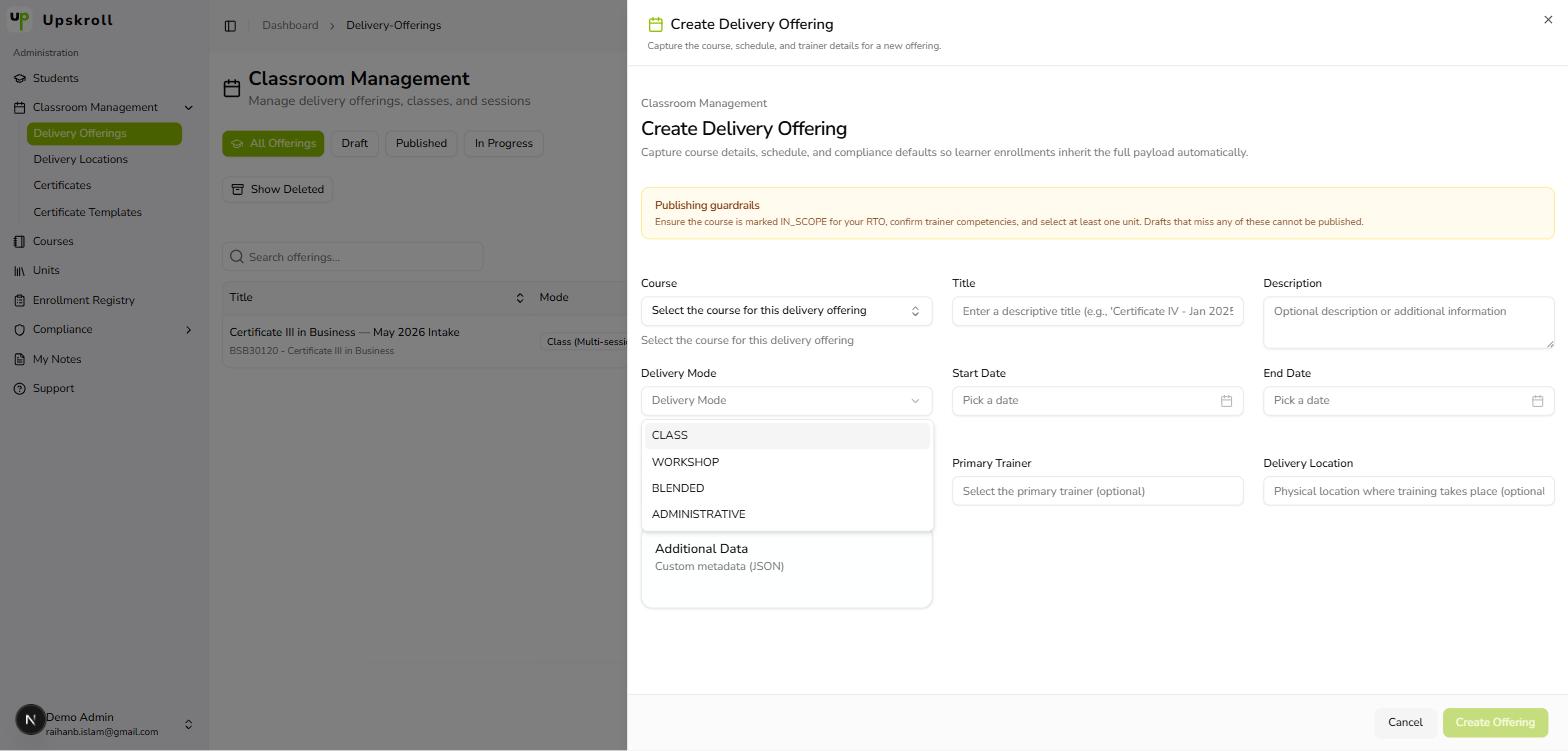
- 2Click the New Offering button to open the offering creation form (a drawer panel on the right).
- 3Select the Course from the course dropdown. You must select a course where scope is validated or In Scope before you can publish the offering later.
- 4Enter the Offering Title (e.g. 'Certificate IV - January 2025 Intake', 3-200 characters). This is the public name for the class or intake.
- 5Optional: Add a Description for additional details about the offering.
- 6Select the Delivery Mode: Class, Workshop, Blended, or Administrative.
- 7Set the Start Date and End Date (format: YYYY-MM-DD). The end date must be after the start date.
- 8Optional: Set Max Capacity (1-1000 learners). Leave empty for unlimited capacity.
- 9Optional: Select a Primary Trainer from the trainer dropdown.
- 10Optional: Select a Delivery Location from the location dropdown (if your RTO has defined locations; required for AVETMISS NAT00020 reporting).
- 11Leave the Metadata field empty unless your RTO uses custom JSON data.
- 12At the bottom, note the Publishing Guardrails warning: ensure the course is IN_SCOPE, confirm trainer competencies, and select at least one unit from the course. These are required before publishing.
- 13Click Save to create the offering in Draft status.
What happens next
- The Delivery Offering is created and appears in the Classroom Management list with a Draft status badge.
- You can now enrol students into this specific offering via the Enrol Student action.
- The offering is available for CSV bulk import, competency matrix setup, and attendance tracking.
- You can publish the offering once scope validation, trainer competency, and unit selection are confirmed.
Tips
- Before publishing a Draft offering, ensure the course is marked IN_SCOPE for your RTO and at least one unit from the course is selected. The publish validation will block you if these are missing.
- Set delivery mode strategically — Class and Workshop offerings are for instructor-led training; Blended is for mixed modality; Administrative is for office-based or legacy records.
- If you need to move a learner between offerings (e.g. from one class intake to another), use the Move Learner action on the enrolment — this preserves attendance and competency records.
- Use the Enrollment Roster action to view all enrolled learners, their current status, and capacity remaining at a glance.
- Delivery Offerings are separate from Enrollment Registry enrolments. You can enrol students directly in the Enrollment Registry without a specific offering, but you lose classroom management features (attendance, competency tracking).
- Once an offering has learners enrolled or is marked In Progress, you cannot delete it. Plan your offering structure before enrolling students.