Create a student profile
Add a new learner with the correct details before enrolment and compliance reporting begins.
Purpose
Create an accurate, complete student record in Upskroll so the learner can be enrolled, their compliance data reported, and their USI verified.
When to use
Whenever a new learner joins your RTO and needs to be added to the system, ideally before or at the point of enrolment.
Steps
- 1In the left sidebar, click Students to open the Student Management page.
- 2Click the Add Student button in the top-right area. A multi-section form will open.
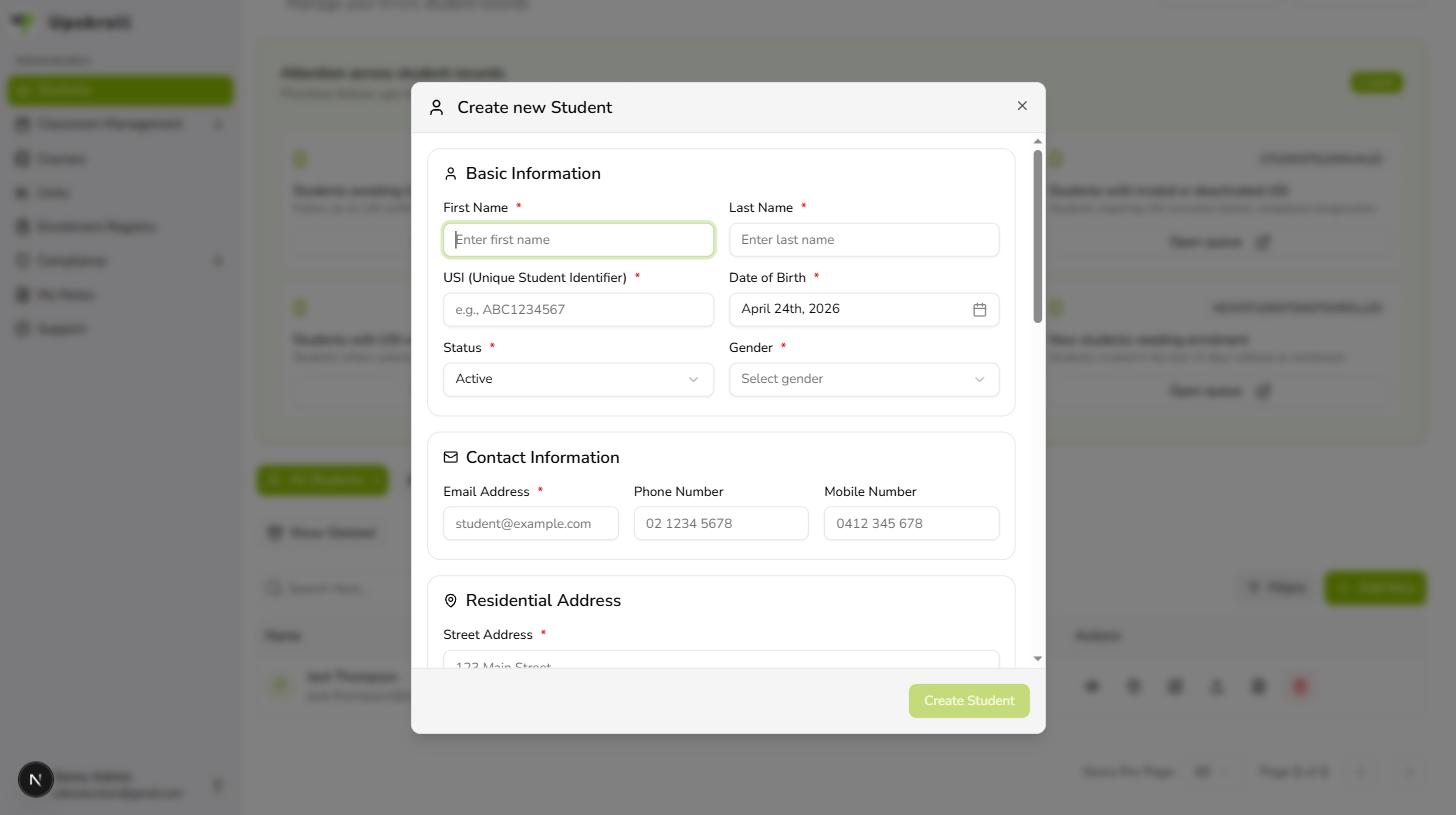
- 3Section 1 — Basic Information: Enter First Name, Last Name, USI (Unique Student Identifier, 10 characters e.g. ABC1234567), Date of Birth, Status (set to Active for a new enrolment), and Gender. All of these are required.
- 4Section 2 — Contact Information: Enter Email Address (required), Phone Number, and Mobile Number.
- 5Section 3 — Residential Address: Enter Street Address, Suburb, State (dropdown: NSW, VIC, QLD, WA, SA, TAS, ACT, NT), Postcode, and Country (defaults to Australia). All address fields are required.
- 6Section 4 — Demographics (recommended for AVETMISS NAT00080): Fill in Highest School Level Completed, Indigenous Status, Language Spoken at Home, Labour Force Status, and Country of Birth where available. These fields are labelled with their AVETMISS position numbers.
- 7Section 5 — AVETMISS Compliance: Enter any additional compliance fields such as Disability Status, Prior Educational Achievement, and At School Flag if applicable.
- 8Review all fields for accuracy, then click Save. The student profile is created immediately.
What happens next
- A student profile is created and appears in the Student Management list.
- The student can now be searched by name, email address, or student ID.
- A post-create card appears showing USI compliance status and offering next steps: Enrol this student, Upload documents, or Review USI verification.
- If the USI is pending verification, the student's attention card will appear in the USI follow-up queue on the Students page.
Tips
- USI is required and must match the identifier registered with the Student Identifiers Registrar. An incorrect USI will appear in the USI error queue and block compliance exports.
- Capture AVETMISS demographic fields (Section 4) at intake while you have the student in front of you — these are much harder to collect later and are required for NAT00080 reporting.
- Double-check the spelling of names and dates of birth. These appear in certificates and compliance submissions and are difficult to correct after enrolment.
- If a student already exists, search by email before creating a new profile to avoid duplicates.
- You can use Bulk Import (top-right button) to add multiple students from a CSV file if you are onboarding a cohort.