Search for and view a student
Find the right student quickly and open their full profile.
Purpose
Locate a student record for review, status updates, enrolment activity, document management, or compliance checks.
When to use
Any time a learner contacts your team, needs a record update, or you need to review their enrolment history.
Steps
- 1Click Students in the left sidebar to open the Student Management page.
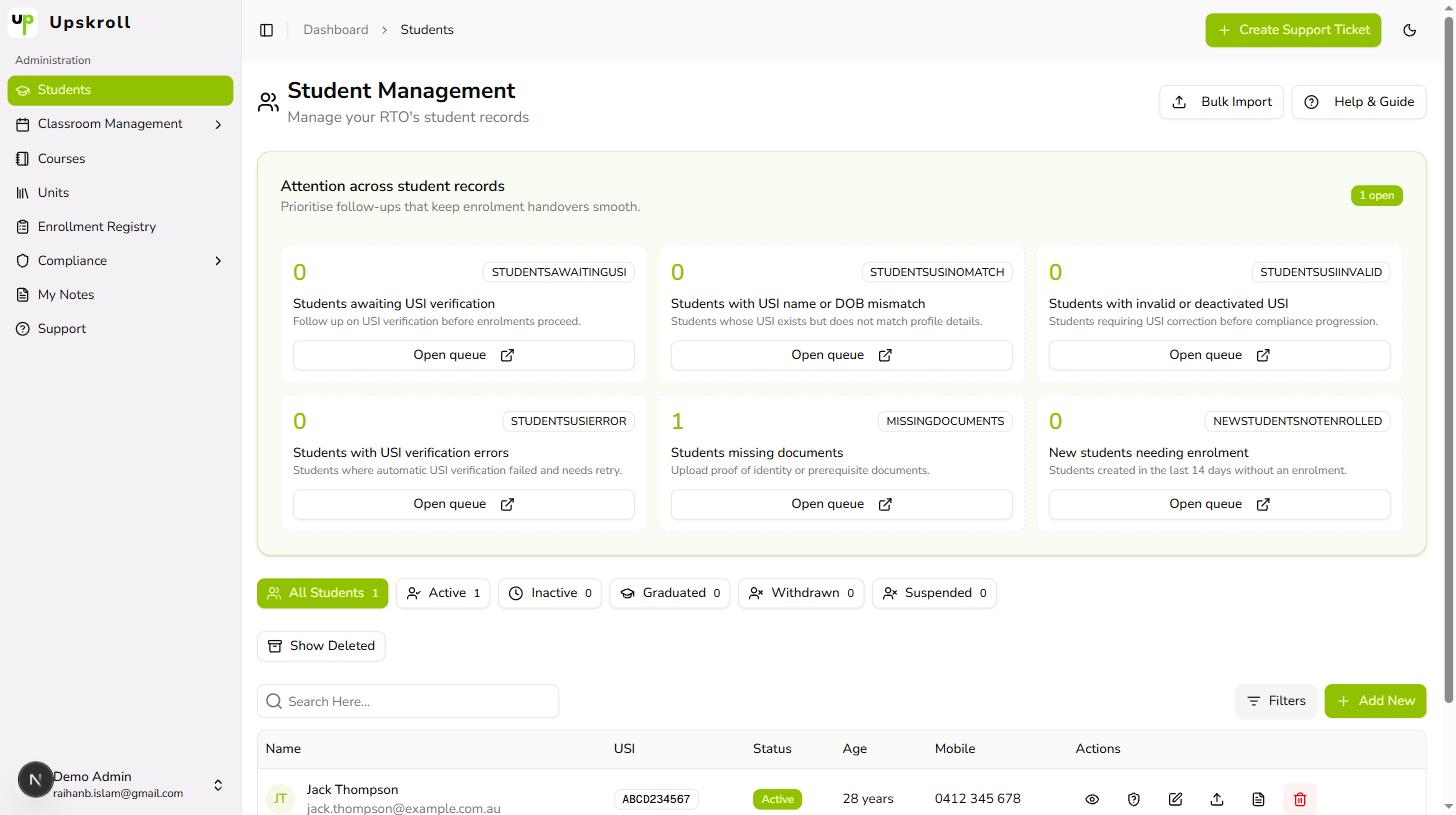
- 2Use the search bar near the top to search by full name, partial name, email address, or student ID.
- 3Use the status filter buttons above the table (All Students, Active, Inactive, Graduated, Withdrawn, Suspended) to narrow your results if needed.
- 4Click the student's name or the View Details icon (eye icon) on their row to open their full profile.
- 5From the student profile, you can view contact details, address, AVETMISS data, enrolments, and uploaded documents.
What happens next
- The full student profile is open and ready for review or action.
- You can see the student's current status badge, contact details, and enrolment history.
- From the profile, you are one click away from editing the record, uploading documents, or enrolling the student into a course.
Tips
- Search by email address when two students have similar names — it is the most reliable unique identifier.
- If a student does not appear in search results, check whether Show Deleted is toggled off — soft-deleted students are hidden by default. Click Show Deleted to reveal them.
- The Attention Panel at the top of the Students page surfaces students who need follow-up: USI issues, missing documents, and new students not yet enrolled. Check these regularly.