Update student status
Keep student lifecycle status accurate — it flows directly into reporting and compliance exports.
Purpose
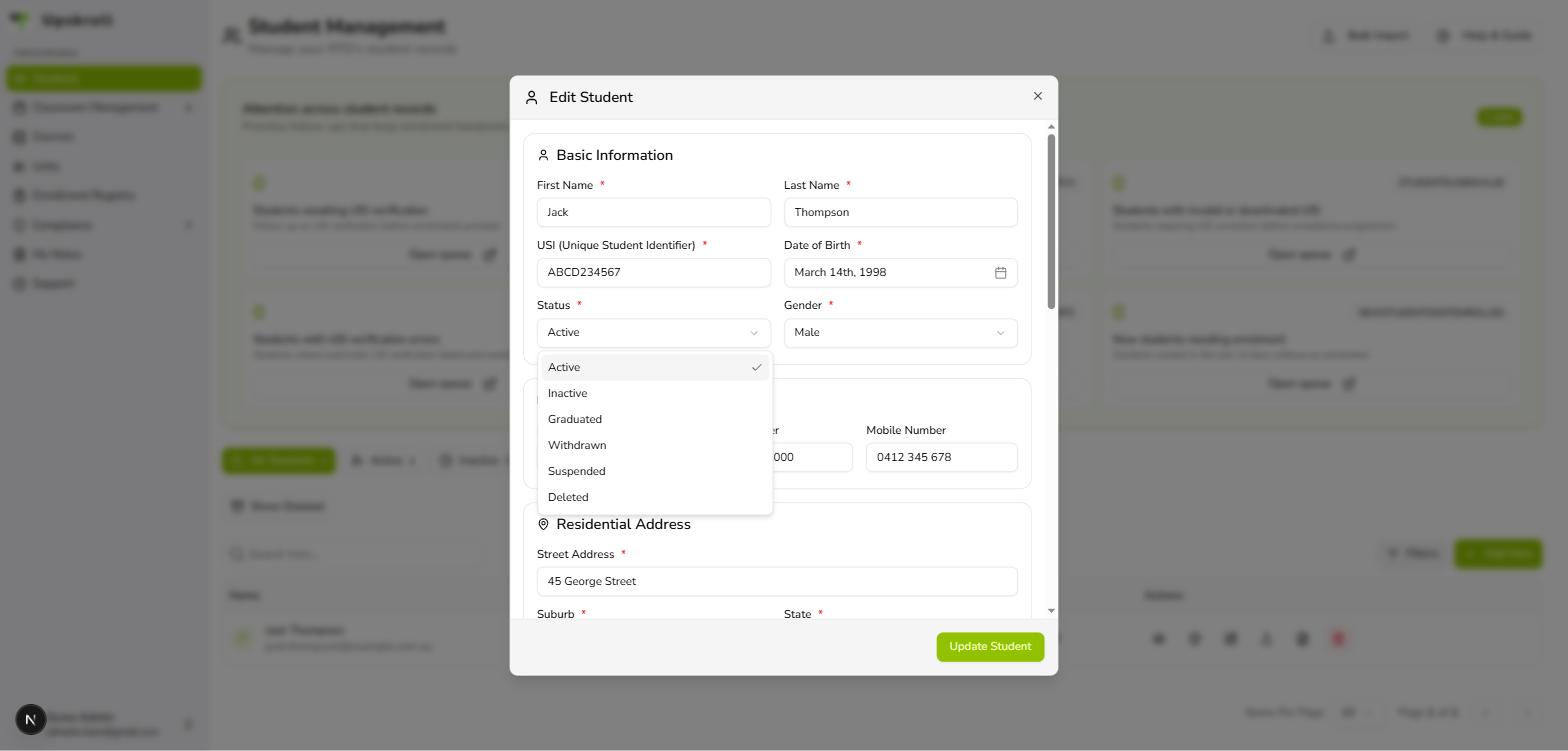
Update a student's status in Upskroll to reflect their current stage in training (Active, Inactive, Graduated, Withdrawn, or Suspended).
When to use
Any time a learner's situation changes — they become inactive, complete their training, defer, withdraw, or return to active study.
Steps
- 1Navigate to Students in the sidebar and find the student using the search bar or status filters.
- 2Click the Edit icon (pencil) on the student's row, or open their profile and click Edit.
- 3In the Basic Information section, click the Status dropdown and select the correct status: Active, Inactive, Graduated, Withdrawn, or Suspended.
- 4If your team tracks reasons for status changes, add a note in the relevant notes field.
- 5Click Save. The status badge on the student's profile and in the table updates immediately.
What happens next
- The student's status is updated in Upskroll.
- The status badge in the Student Management table reflects the change.
- AVETMISS exports and compliance reports will include the updated status.
- The change is logged in the system audit trail.
Tips
- Use Withdrawn (not Inactive) for a learner who has formally withdrawn from a course — these have different AVETMISS reporting implications.
- Use Graduated only once the learner has officially completed and been awarded the qualification.
- If many students need the same status update (e.g. end-of-cohort graduation), use the bulk action filters in the Student Management table to select and update multiple records at once.
- Status updates are reporting-critical — delays in updating statuses cause inaccurate AVETMISS exports and operational reports.