Login and understand the dashboard
Sign in to Upskroll and see your RTO's current status at a glance.
Purpose
Access Upskroll and review your RTO's core information, recent students, and system status.
When to use
At the start of your working day or any time you need to check your RTO's current state.
Steps
- 1Open your browser and navigate to the Upskroll sign-in page.
- 2Enter your registered email address and password, then click Login.
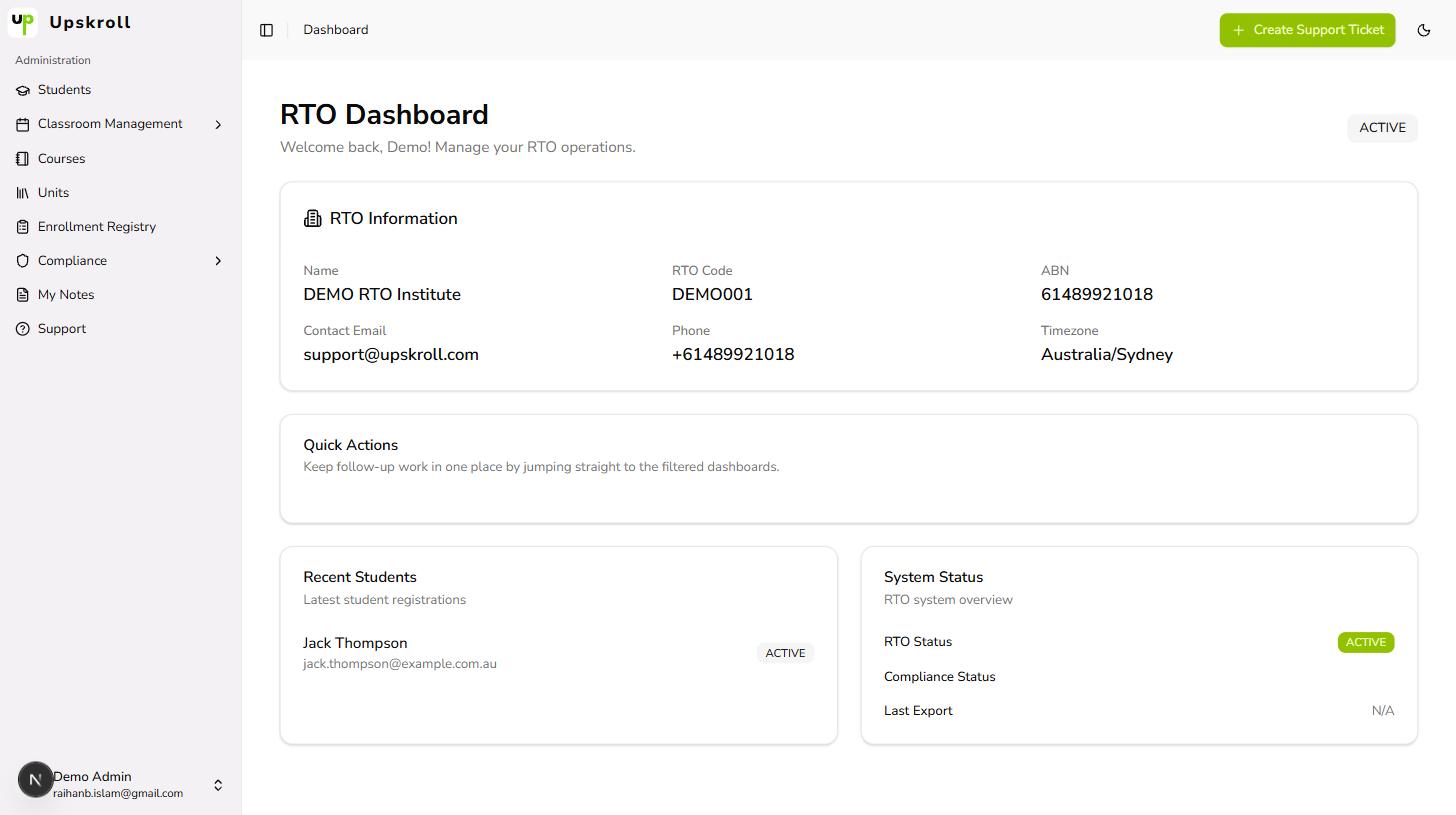
- 3You will land on your RTO Dashboard. The main screen displays three cards: RTO Information (name, code, ABN, contact details, timezone), Recent Students (last five students with status badges), and System Status (RTO status and last export information).
- 4Use the Recent Students card to spot any unexpected records or status issues at a glance.
- 5Use the sidebar on the left to navigate to any module — Students, Courses, Classroom Management, Enrollment Registry, or Compliance.
What happens next
- You are signed in and your RTO Dashboard is displayed.
- Your RTO's name, code, ABN, contact details, and timezone are shown on the main card.
- The five most recently added students are visible with their status badges (Active, Inactive, Graduated, Withdrawn, Suspended).
- All operational modules are accessible from the left sidebar.
Tips
- Bookmark the sign-in page so your whole team can reach it quickly.
- The Recent Students card is a quick health check — if you see an unexpected name or status, investigate before diving into operations.
- Each student status is colour-coded, so you can spot issues at a glance.