Identify and fix data quality issues
Catch missing or incorrect data before it causes AVETMISS export failures.
Purpose
Surface and resolve student, enrolment, and course data quality issues — especially missing AVETMISS fields, incorrect USIs, and incomplete address data — before they become blocking errors in your next export.
When to use
Regularly throughout the reporting period, and specifically before starting an AVETMISS export. Do not wait until the export step to find data issues.
Steps
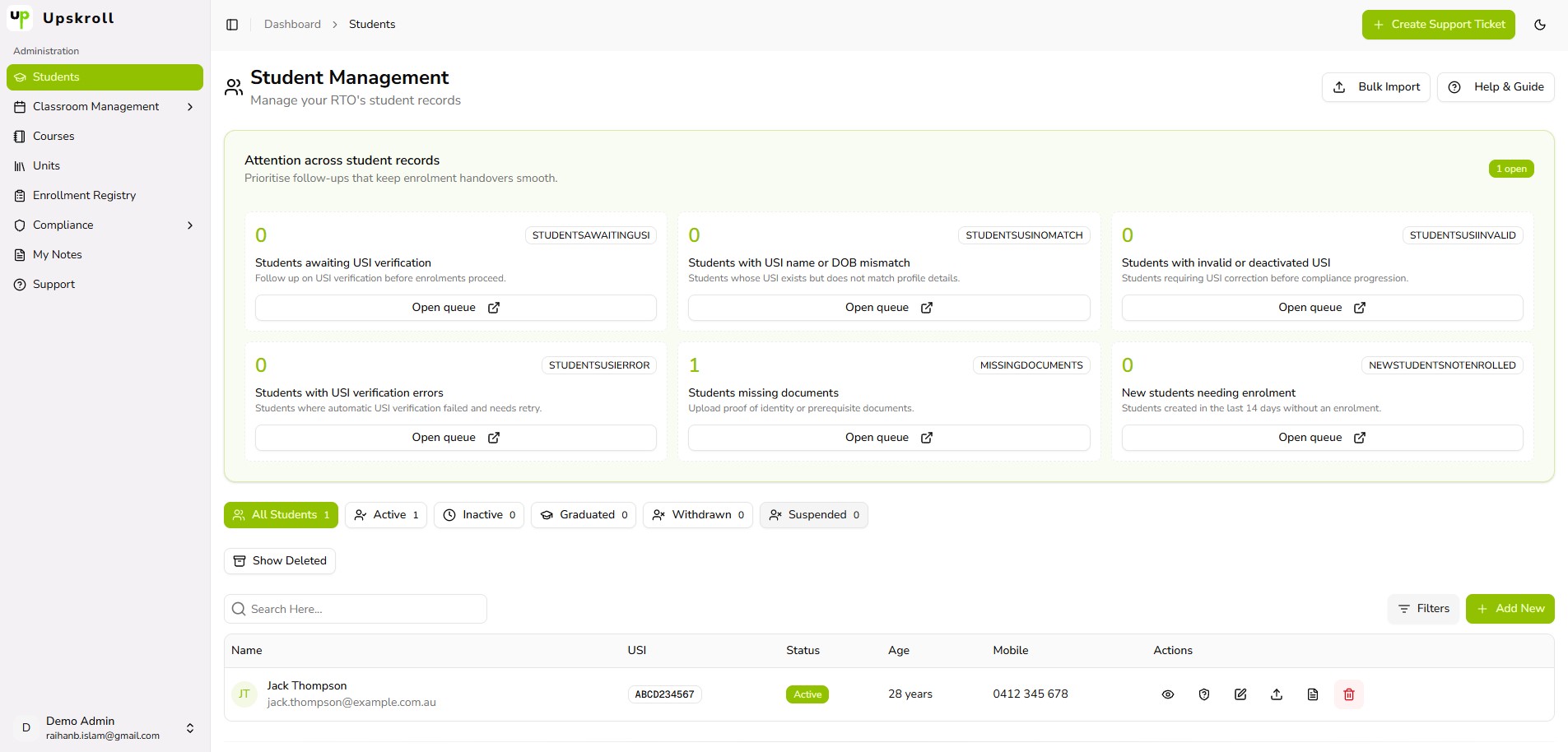
- 1Go to Students and check the Attention Panel at the top of the page. This shows queued items by category: USI follow-up, USI no match, USI invalid, USI error, missing documents, and new students not yet enrolled. Each category has an Open queue button that filters the student list to the affected records.
- 2Work through the USI queue first: open each flagged student, correct or re-enter the USI, and save. USI errors block AVETMISS exports.
- 3Use the Missing Documents queue to identify students who are missing required compliance documents. Upload documents from the student profile using the Upload Documents action.
- 4For demographic gaps (AVETMISS NAT00080 fields), open affected student profiles and complete Section 4 — Demographics: Indigenous Status, Language Spoken at Home, Labour Force Status, Country of Birth, and Highest School Level Completed.
- 5Once student data is clean, go to Compliance > AVETMISS Exports and start the Export Wizard. Step 3 (Preview Files) shows a live Validation Summary. Any remaining Blocking errors are listed with inline fix links — follow each link, correct the data, and return to re-run the preview.
- 6When the Validation Summary shows zero Blocking errors, you can proceed to Step 4 and create the export.
What happens next
- USI errors, missing demographic data, and address gaps are identified and resolved.
- The AVETMISS Export Wizard Step 3 shows zero Blocking errors.
- Your export dataset is clean and ready for submission.
- Data corrections are saved against the student and enrolment records and reflected immediately in the next export run.
Tips
- Assign one team member to own the Attention Panel review on a weekly basis — small issues fixed regularly are far easier than a backlog at reporting time.
- AVETMISS demographic fields (Section 4 of the student form) are not visible in the main student table — you must open the student profile to see and edit them.
- If you see a pattern of missing data (e.g. all students from a bulk import are missing a field), investigate the source CSV rather than fixing records individually.
- The Validation Summary in Step 3 distinguishes Blocking errors (must fix), Warnings (should fix), and Info (advisory). Treat Warnings seriously even if they do not block the current export — they often become Blocking errors after regulatory guideline updates.